In a nutshell
- 🔋 Use the hidden Extreme/Ultra Battery Saver to pause non‑essential apps, throttle background activity, and gain up to 4 extra hours when power is low.
- 🧭 Find it fast: Pixel (Battery Saver → Extreme Battery Saver), Samsung (Battery → Power saving → Limit apps/Home), Xiaomi (Ultra Battery Saver), OnePlus/Oppo (Super/Ultra Power Saving).
- ✅ Curate your allow list: keep calls, SMS, and one messenger; add essentials like Maps or an authenticator only if needed—every allowed app costs minutes.
- ⚙️ Stack smart tweaks: enable Adaptive Battery, drop to 60 Hz, disable Always‑on Display, lock to 4G/LTE in weak 5G areas, prefer Wi‑Fi, and restrict background activity per app.
- ⚡ Be ready: pin the tile to Quick Settings and auto‑enable Battery Saver around 20% for a head start before the critical low‑battery window.
Every Android user knows the dread of the 15% alert flashing during a commute, a match, or a late train home. Hidden in plain sight is a setting that can stretch that last sliver of charge into meaningful time — sometimes up to four extra hours — without a cable or brick in sight. I’ve tested it on a crowded London day and on long provincial train journeys, and the difference is stark. Flip the switch, watch background drain evaporate. It’s not magic; it’s smart throttling. No power bank required. The trick? Use Android’s most aggressive, but surprisingly flexible, battery mode and tune what’s allowed to run. Here’s where to find it, why it works, and how to make it work for you.
What Is Extreme Battery Saver and Why It Works
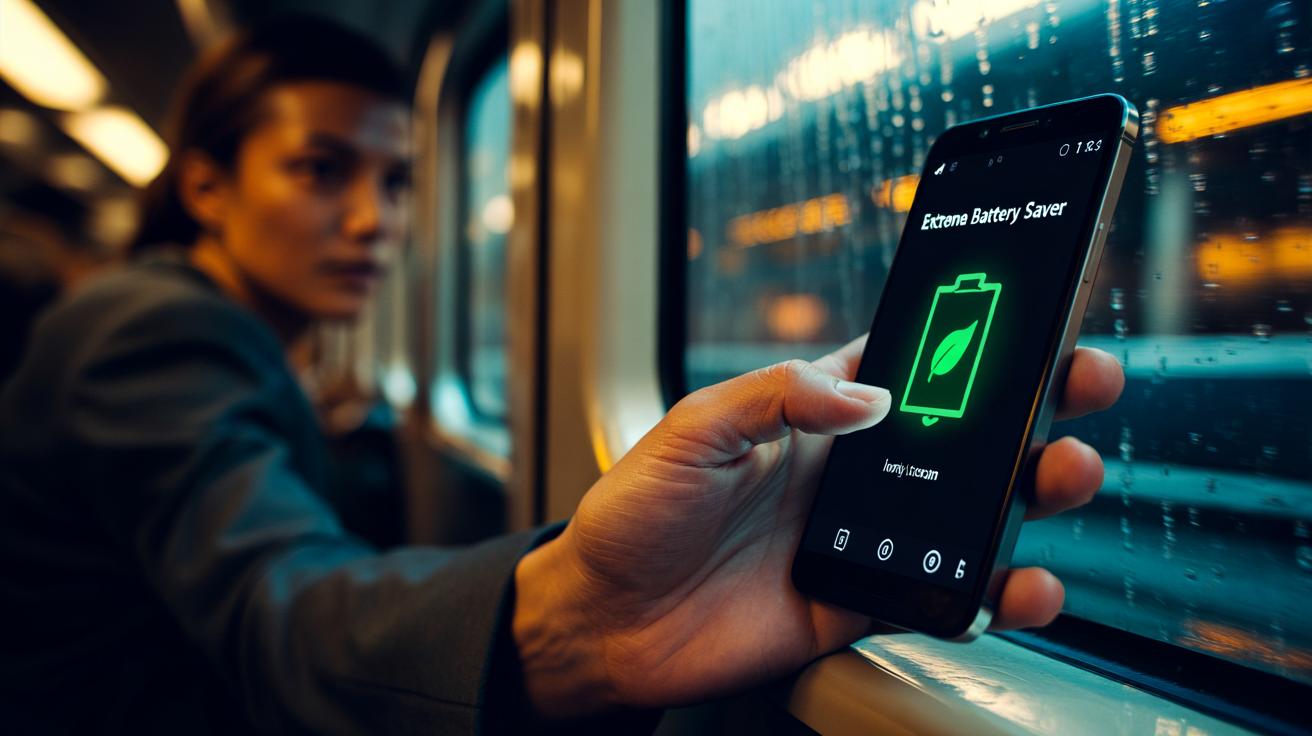
On Google’s Pixels, the feature is called Extreme Battery Saver. Think of it as Android’s normal Battery Saver on steroids. It pauses non‑essential apps, slows the CPU, limits background sync, and hardens the system’s Doze behaviour so your phone sleeps deeply whenever the screen’s off. Messages and calls still get through if you allow them, and alarms remain reliable. In field use, that combination can add roughly four extra hours of usable time when you’re down to the wire. The magic is selective starvation: apps can’t quietly sip power in the background, radios wake less, and wake‑locks are curtailed.
Manufacturers mirror this with their own names. Samsung offers a hard mode within Power saving that strips the Home screen and limits apps; Xiaomi’s Ultra Battery Saver is equally ruthless. Under the hood, the wins come from cutting network chatter and background jobs. Push updates are batched, location pings are throttled, and the refresh rate drops. It’s brutal in the best way. Crucially, it’s configurable: you choose a small list of essentials while everything else waits. That’s the difference between survival and a dead slab at 6 p.m.
Where to Find the Hidden Setting on Popular Phones
The setting isn’t always obvious, because it sits a layer deeper than a simple quick toggle. On Pixels, it hides under Battery Saver settings; on other brands, it’s tucked behind “Power” or “Device care.” Once you know the path, you can reach it in seconds, even with 3% left. Use the table below as a quick map and remember: names may vary slightly across Android versions and regional builds. If in doubt, search for the exact mode name in the Settings search bar and pin it to Quick Settings for emergencies. That one‑tap access is worth its weight in watts.
| Brand | Path | Mode Name | Quick Access |
|---|---|---|---|
| Google Pixel | Settings > Battery > Battery Saver > Extreme Battery Saver | Extreme Battery Saver | Add “Battery Saver” tile; enable “When Battery Saver is on” = Extreme |
| Samsung Galaxy | Settings > Battery and device care > Battery > Power saving > toggle “Limit apps and Home screen” | Power saving (with Minimal Home) | Add “Power saving” tile; long‑press to configure limits |
| OnePlus/Oppo | Settings > Battery > Power saving mode / Super power saving (name varies) | Super/Ultra Power Saving | Battery tile in Quick Settings; edit tiles if hidden |
| Xiaomi/Redmi/POCO | Settings > Battery > Ultra Battery Saver | Ultra Battery Saver | Control Centre tile “Ultra Battery Saver” |
On older or carrier‑skinned devices, the label might be “Ultra power saving,” “Emergency mode,” or “Maximum power saving.” The behaviour is the same: restrict everything except a whitelisted handful. Pin the tile now so you’re not hunting for it at 2%.
Tune the Whitelist: Keep What Matters, Freeze the Rest
The real trick isn’t just switching the mode on — it’s curating the allow list. Extreme modes typically let you pick a small set of apps that remain fully active: calls, SMS, and a messaging app are non‑negotiable for most people. Add Maps if you’re navigating, your authenticator if you bank, and a transit app if you commute. Every app you allow costs you minutes; every app you freeze buys them back. The balance is personal, but ruthless is better when you’re low. Remember that many notifications are noise; the battery doesn’t care whether it’s urgent.
On Pixels: Battery > Battery Saver > Extreme Battery Saver > Essential apps. On Samsung: Power saving > Limit apps and Home screen > choose up to a handful. Xiaomi allows a tiny roster inside Ultra Battery Saver. Test on a calm day, not in crisis. Open the chosen apps, ensure notifications still arrive, and verify that maps cache routes when offline. That way, when you hit 10% after lunch, you’re ready. Set it once, save battery every day. It turns a blunt instrument into a scalpel.
Stack Smart Tweaks for Even More Run Time
Extreme mode is the headline, but small supporting tweaks compound the effect. Toggle Adaptive Battery (Settings > Battery) so Android learns your patterns and cages rarely used apps automatically. Drop the refresh rate from 120 Hz to 60 Hz and switch off Always‑on Display; OLED screens sip less when pixels are off. If you’re in a weak 5G area, lock to 4G/LTE to stop wasteful radio hunting. Radio management can be the difference between limping to bedtime and calling a cab with 0%. Also, prefer Wi‑Fi over mobile data when available — it’s often cheaper on your battery budget.
Prune background access ruthlessly: Settings > Apps > Select app > Battery > Restrict background. Disable location scanning for Wi‑Fi/Bluetooth when you don’t need it, and keep Dark theme on for OLED devices. Use the One‑tap Clean options from OEM care apps sparingly; they can undo beneficial caching. Finally, schedule Battery Saver to auto‑enable at 20% so you get a head start before the cliff. Combine these with Extreme mode and you stack minutes into hours. It’s quiet, boring engineering — and it works.
When your phone is your ticket, your wallet, and your newsroom, dead battery equals missed moments. The good news is that Android already gives you the tools to stretch the last 10% without lugging a brick. Find the hidden mode, whitelist wisely, and stack small wins. It won’t turn a worn‑out cell into a miracle, but it will get you home, get the story filed, or get the boarding pass scanned. Which apps make your personal essential list — and how much time did the switch actually buy you on your own handset?
Did you like it?4.6/5 (27)